
Actions such as dragging, swiping, and drag&drop seem like intuitive ways to operate an interface. However, they are not usable for everyone, as these types of movement require fine motor skills and a visual overview of the screen.
For example: an exercise involving a map of Europe where one has to drag capital cities to their matching countries.
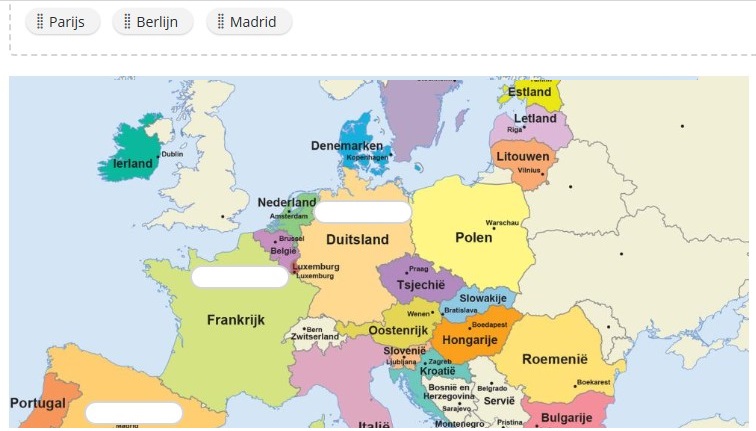
To drag Madrid to Spain, one needs to:
- move the mouse pointer to the word "Madrid";
- press the left mouse button;
- move the cursor to the correct country on the map while keeping the button pressed;
- release the mouse button.
Difficulties
- Some people with a motor impairment are unable to keep a button pressed, or can't move in certain directions. Assistive technologies can help with these issues, but are time consuming.
- This exercise can be equally difficult when using a finger on a small touch screen instead of a large screen and a mouse.
- The exercise is even more complex for a partially sighted person who uses a large zoom factor, as they only see a fraction of the exercise at a time. This makes it difficult to know in which direction the words must be moved.
- For blind people, exercises involving drag-and-drop functionality are impossible as they can't tell where the cursor is located.
Solution
To make interfaces with dragging functionality usable for everyone:
- Provide an alternative method using (single or multiple) clicks that does not require combined movements.
- Make sure that the interface can be operated by keyboard as well. If the alternative solution is built with default accessible interface elements, this will automatically be the case.
- Make sure that no sight is needed to understand the interface, and that it can be operated using a screenreader.
The following examples will illustrate these principles.
Dragging items from one column to another
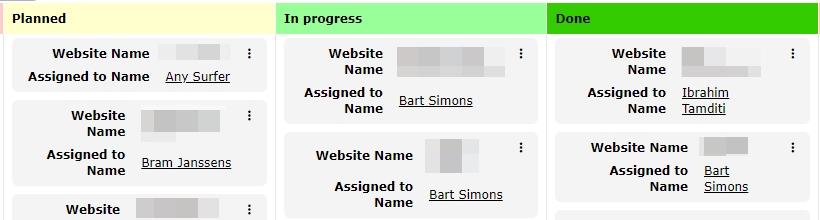
Our CRM has a Kanban board with three columns that show the current states of our audits: planned, in progress, and done. When an audit is finished, we can drag it from the column "In progress" to the column "Done". There is an alternative method in place to achieve this: click the button that shows the details of the audit, then click the dropdown list that offers state options, and finally click the state "Done".
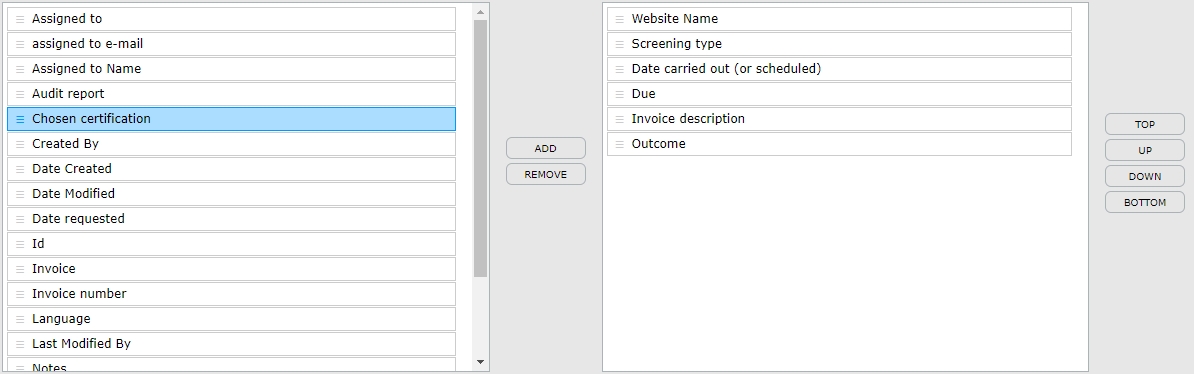
Another example of this same principle is a selection tool that allows the user to define which fields a table must contain. The left hand column displays all available fields, while the selected fields are in the right hand column. One can drag the fields from one column to the other, as well as change the field order within the column by dragging the fields up or down. Alternatively, the user can achieve the same result by using the buttons, "Add" and "Remove", which are situated between the two columns. One can simply click on a field in the left hand column and then activate the "Add" button to move the field to the other column. "Top", "Down", "Up", and "Bottom" buttons are also available.
Move an item in a treeview
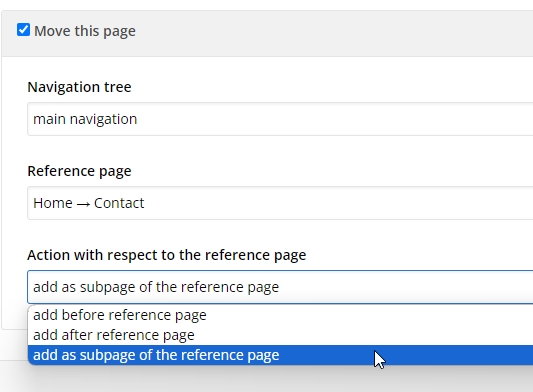
The backend of our CMS allows us to reorder pages by dragging them to a different place within the treeview. Since this method is not accessible for everyone, an alternative is provided. The settings of each page contain three dropdown lists, which can be used to:
- define in which navigation menu the page should be placed (e.g. the main menu).
- add a reference page (e.g. "Home > Contact");
- define the position of the page compared to the given reference page (e.g. as sub page).
Sliders to adjust a value
Some search engines allow you to a set a price range by dragging two values on a line.
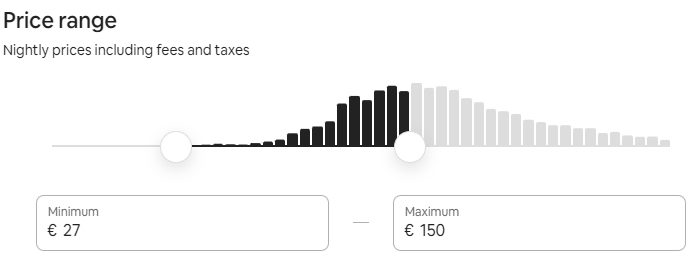
This example contains at least two methods to achieve the same result with simple click actions. The first is to provide two text fields to define minimum and maximum values. The second is to provide "+" and "-" buttons to increase or decrease the stated value. This method can be used if a website allows the user to define only one value.
Sliders or carousels
Let's take the example of an image gallery slider, where a user can browse through pictures on a touch screen with a swipe movement. Swiping is similar to dragging: the current visible picture must be moved horizontally in order for the next one to appear. In order to achieve this, the user must not only press, but also continually keep pressing, a button during the entirety of this horizontal movement.
One possible solution is to provide "Previous" and "Next" buttons to operate the slider with, requiring single clicks. Buttons built with the HTML button element automatically contain all functionality needed to be operable by keyboard. If their given name is sufficiently meaningful, the function of the slider will be clear to a blind user as well. A slider using this construction will also automatically be compatible with speech recognition software.

Notes:
- Use real HTML buttons, as they will automatically work for both mouse and keyboard users
- Give the buttons meaningful names (e.g. "previous picture" or "next article"), either as visible text or as an icon with a textual alternative
- Hide buttons that are not currently active to avoid confusion. Don't show a "next" button when there's no next picture present.
Drag-and-drop exercises in an e-learning course
An e-learning course may contain exercises in which a user must connect two concepts or words by dragging them to their appropriate spots within a text.
Several solutions are possible. One option could be to simply click the first element, and then the second, in order to link them together using singular actions without needing to continually press down a button or key. Another option is to associate a number or letter with each possible option, and to add a dropdown list in which these numbers or letters can be selected, instead of having to drag them to a specific place.
Conclusion
- Dragging and swiping are not possible for everyone.
- Provide an alternative that only requires click actions.
- Include these alternatives in your initial project designs, as it will be much harder to implement them at a later stage.
Comments
Be the first to comment